HDMI vs DisplayPort: Which Cable for Which Screen
HDMI and DisplayPort compared: bandwidth, refresh rates, daisy-chaining and adapters. Pick the right cable for a TV, a gaming monitor or a laptop.
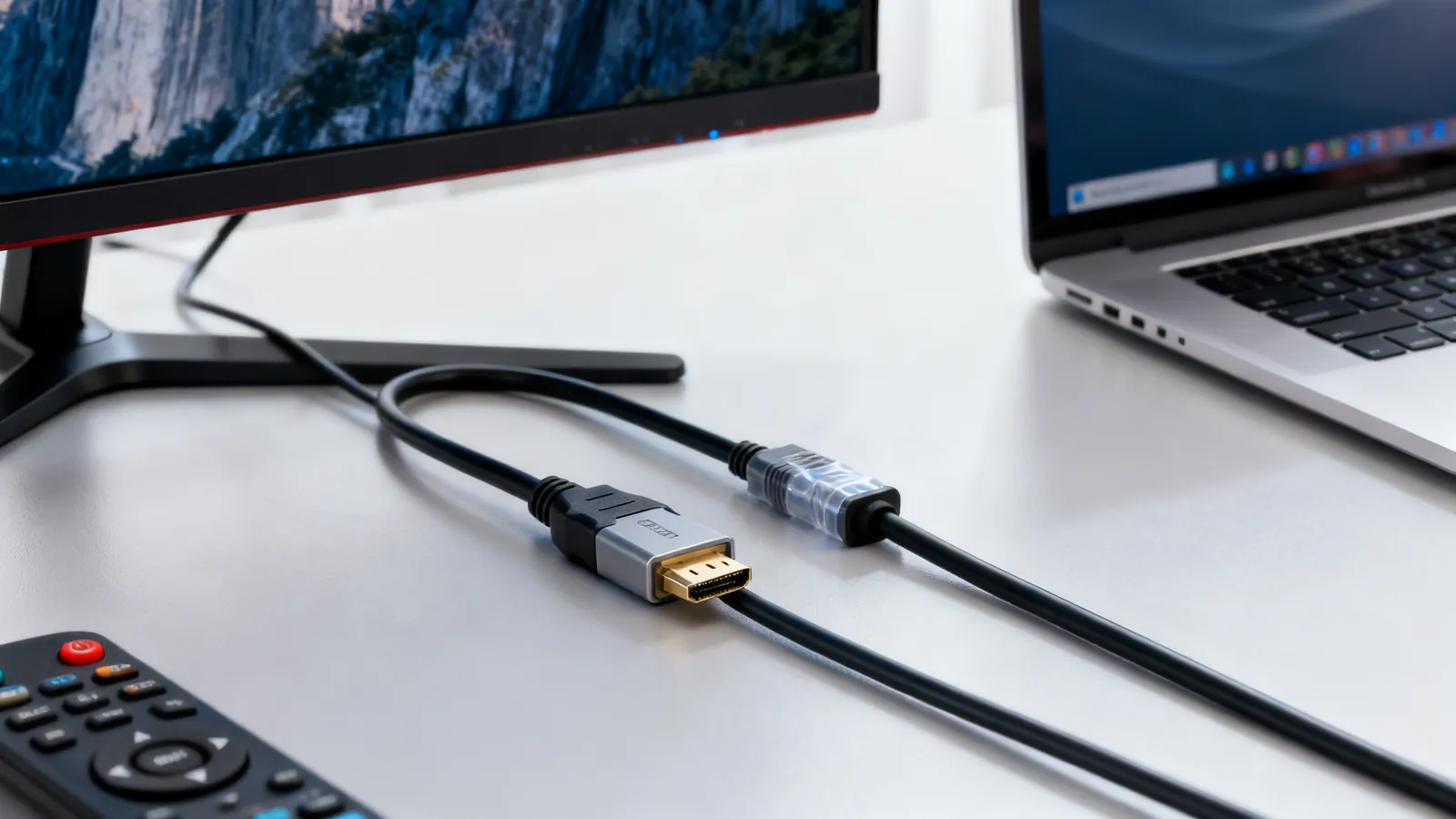
HDMI and DisplayPort both carry digital video and audio, and on a typical desk either one will light up the screen. The difference shows up at the edges: very high refresh rates, multiple monitors from one port, and how the two standards handle adapters. DisplayPort is the more flexible link for computer monitors; HDMI is the universal link for TVs, receivers and games consoles. The sections below set out the bandwidth each version provides, what that means for resolution and refresh rate, and which adapter works without a converter chip.
Bandwidth and what it buys you
Both standards are defined by their data rate, and the cable must be rated for the rate you need. A cable sold as “HDMI 2.1” is mislabelled: HDMI cables are certified by speed, not by version number. DisplayPort cables are certified by the same logic, with names like DP8K and DP80.
| Standard | Max bandwidth | Typical use |
|---|---|---|
| HDMI 1.4 | 10.2 Gbps | 4K at 30 Hz, 1080p |
| HDMI 2.0 | 18 Gbps | 4K at 60 Hz, HDR |
| HDMI 2.1 | 48 Gbps | 4K at 120 Hz, 8K at 60 Hz |
| HDMI 2.2 | 96 Gbps | Needs Ultra96 cable |
| DisplayPort 1.2 | 21.6 Gbps (HBR2) | 4K at 60 Hz, MST daisy-chain |
| DisplayPort 1.4 | 32.4 Gbps (HBR3) | 4K at 120 Hz, 8K at 60 Hz with DSC |
| DisplayPort 2.0/2.1 | 40, 54 or 80 Gbps | UHBR10, UHBR13.5, UHBR20 |
For a 4K monitor at 60 Hz, HDMI 2.0 and DisplayPort 1.2 both have enough headroom. For 4K at 120 Hz or 8K, you need HDMI 2.1, DisplayPort 1.4 with DSC, or a DisplayPort 2.x link. The version history behind these figures is set out in HDMI 1.4, 2.0, 2.1 and 2.2: versions explained and in DisplayPort 1.2, 1.4 and 2.1, and DP40/DP80 cables.
Refresh rate and gaming
For gaming, the practical question is whether the link can carry the resolution and refresh rate your monitor and graphics card support. DisplayPort 1.4 at 32.4 Gbps covers 4K at 120 Hz with DSC, and DisplayPort 2.0/2.1 goes higher still. HDMI 2.1 at 48 Gbps covers 4K at 120 Hz and 8K at 60 Hz, and adds variable refresh rate (VRR) and auto low latency mode (ALLM).
A gaming monitor with a high refresh rate usually has both inputs, and either can work if the cable is rated for the speed. Where the monitor offers DisplayPort 2.x and the graphics card does too, that link has the most headroom. Where the monitor is a television, HDMI is the input that carries VRR and the audio return channel.
Daisy-chaining and multiple monitors
DisplayPort 1.2 introduced Multi-Stream Transport (MST), which lets one port drive a chain of monitors: the first display passes the signal on to the next. HDMI has no equivalent in the consumer standard, so two HDMI monitors need two ports or a splitter that mirrors the same image.
MST is useful on a laptop dock or a small desktop with one DisplayPort output. The total bandwidth is shared across the chain, so two 4K monitors at 60 Hz need DisplayPort 1.4 or better. A chain also depends on each monitor supporting MST pass-through; not every model does.
Adapters: what works passively
DisplayPort has a feature called DP++ (dual-mode). A DP++ port can output an HDMI or DVI signal directly, so a passive DisplayPort-to-HDMI adapter works for video. A port without DP++ needs an active adapter with a converter chip. Mini DisplayPort is the same signal on a smaller plug, and DisplayPort Alt Mode carries DisplayPort over USB-C.
Going the other way, HDMI to DisplayPort needs an active adapter, because HDMI ports do not output DisplayPort signalling. The same applies to VGA: VGA is analogue, so VGA to HDMI needs an active converter.
DVI-D carries the same video signal as HDMI, so a passive DVI-D to HDMI adapter works for video, usually without audio. This is a common way to connect an older monitor to a newer computer.
USB-C to DisplayPort
Many laptops now output DisplayPort over USB-C using DisplayPort Alt Mode. A USB-C to DisplayPort cable carries that signal to a monitor with a DisplayPort input. The cable must support Alt Mode; a USB-C cable built only for charging or USB data will not drive a display. The differences between USB-C cables are covered in why USB-C cables are not all the same.
USB-C to HDMI also works, again using Alt Mode on the laptop side. The adapter or cable contains the conversion, so it is an active link even though it looks like a simple cable.
Which to choose: TV, gaming monitor, laptop
For a television
Use HDMI. Televisions have HDMI inputs, and HDMI carries the audio return channel (ARC) and enhanced audio return channel (eARC) that send sound back to a soundbar or receiver. eARC carries uncompressed multichannel PCM and lossless formats such as Dolby TrueHD and DTS-HD Master Audio, at up to 37 Mbps. It uses the HDMI Ethernet Channel wires, so it needs a High Speed cable with Ethernet or an Ultra High Speed cable.
For 4K at 60 Hz with HDR, a Premium High Speed HDMI cable (18 Gbps) is enough. For 4K at 120 Hz or 8K at 60 Hz, use an Ultra High Speed cable (48 Gbps).
For a gaming monitor
DisplayPort is usually the better fit. It offers more bandwidth at a given version, supports MST for multiple monitors, and is the input most gaming monitors expect for their highest refresh rate. If the monitor and graphics card both support DisplayPort 2.x, that link has the most headroom. If the monitor is HDMI 2.1 only, an Ultra High Speed HDMI cable covers 4K at 120 Hz.
For a laptop
Check the ports. A laptop with HDMI outputs HDMI; a laptop with USB-C may output DisplayPort Alt Mode, HDMI Alt Mode, or both. A USB-C to DisplayPort cable is a common way to drive a monitor at high refresh rate. A USB-C dock may offer HDMI, DisplayPort and Ethernet from one cable.
What goes wrong
- A cable rated below the link speed. A Standard HDMI cable (720p/1080i) will not carry 4K at 60 Hz. A High Speed cable (10.2 Gbps) will not carry 4K at 120 Hz. Match the cable to the speed you need.
- Passive adapters in the wrong direction. DisplayPort to HDMI can be passive on a DP++ port. HDMI to DisplayPort needs an active adapter. VGA to HDMI needs an active converter.
- USB-C cables that are not Alt Mode. A USB-C cable built for charging only will not carry video. Look for a cable that states DisplayPort Alt Mode or HDMI Alt Mode support.
- Long passive copper cables. Passive HDMI copper cables get less reliable as length and speed rise. Active copper cables and fiber HDMI (AOC) cables go further, and both are directional: the “source” end goes to the player or computer.
- HDMI over Ethernet extenders that are not HDBaseT. HDBaseT sends uncompressed video, audio, Ethernet, control and power over a single category cable up to 100 m (328 ft). Many low-cost HDMI-over-Ethernet extenders are not HDBaseT and reach less.
- MST chains that exceed the bandwidth. Two 4K monitors at 60 Hz need DisplayPort 1.4 or better. A chain also depends on each monitor supporting MST pass-through.
- Mating APC and UPC fiber connectors. This is a fiber issue, not HDMI or DisplayPort, but it belongs in the same list: never mate an APC connector with a UPC one. The faces do not meet and the link fails or the connectors are damaged.
Cable certification and labels
HDMI cables are certified by speed. Premium High Speed and Ultra High Speed cables carry a certification label with a QR code that the official HDMI Cable Certification app verifies. Standard HDMI cable is 720p/1080i; High Speed is 10.2 Gbps; Premium High Speed is 18 Gbps; Ultra High Speed is 48 Gbps; Ultra96 is 96 Gbps.
DisplayPort cables are certified as DP8K (for HBR3, 32.4 Gbps), DP40 (UHBR10, 40 Gbps), DP80 (UHBR20, 80 Gbps) and DP80LL (low loss). A cable marked DP8K will carry DisplayPort 1.4 at full rate; a cable marked DP40 or DP80 is needed for DisplayPort 2.x.
A cable labelled “HDMI 2.1” is mislabelled. The version number describes the port or the source device, not the cable. Buy by the speed name on the certification label.
Audio over the same cable
Both HDMI and DisplayPort carry audio. HDMI carries ARC and eARC for TV-to-soundbar links. DisplayPort carries audio to monitors with speakers or to an audio extractor. For a computer monitor with built-in speakers, either link works. For a TV and a soundbar, HDMI is the link that carries eARC.
Summary of choices
| Situation | Recommended link |
|---|---|
| Television, 4K at 60 Hz | HDMI 2.0, Premium High Speed cable |
| Television, 4K at 120 Hz or 8K | HDMI 2.1, Ultra High Speed cable |
| Gaming monitor, high refresh rate | DisplayPort 1.4 or 2.x |
| Two monitors from one port | DisplayPort 1.2 or later with MST |
| Laptop with USB-C | USB-C to DisplayPort or USB-C to HDMI, Alt Mode required |
| Older monitor with DVI-D | Passive DVI-D to HDMI adapter |
| Soundbar or receiver | HDMI with ARC or eARC |
HDMI and DisplayPort are not rivals so much as different tools. HDMI is the link that connects to televisions, receivers and games consoles, and it carries the audio return channel. DisplayPort is the link that connects computers to monitors, and it carries multiple streams over one cable. Match the cable to the speed, check the adapter direction, and the link will work.
Common questions
Is DisplayPort better than HDMI for gaming?
DisplayPort usually offers more bandwidth at a given version and supports daisy-chaining, which suits high-refresh-rate monitors. HDMI 2.1 at 48 Gbps covers 4K at 120 Hz and adds VRR and ALLM. Either can work if the cable is rated for the speed.
Can I use a DisplayPort to HDMI cable?
Yes, if the DisplayPort port supports DP++ (dual-mode). A passive DisplayPort-to-HDMI adapter works on a DP++ port. A port without DP++ needs an active adapter with a converter chip.
Does HDMI to DisplayPort work?
It needs an active adapter. HDMI ports do not output DisplayPort signalling, so a passive cable will not work. The adapter contains a converter chip.
Can I connect a USB-C laptop to a DisplayPort monitor?
Yes, if the laptop supports DisplayPort Alt Mode over USB-C. Use a USB-C to DisplayPort cable that states Alt Mode support. A USB-C cable built only for charging or USB data will not drive a display.
What cable do I need for 4K at 120 Hz?
For HDMI, use an Ultra High Speed cable (48 Gbps). For DisplayPort, use a DP8K cable for DisplayPort 1.4 with DSC, or a DP40 or DP80 cable for DisplayPort 2.x. The source and display must also support the rate.
Read next
HDMI Cable Types: Standard to Ultra High Speed
HDMI cables are certified by speed, not version. Compare Standard, High Speed, Premium High Speed, Ultra High Speed and Ultra96, and how to verify a label.
HDMI 1.4, 2.0, 2.1 and 2.2: Versions and Cable Speeds
HDMI 1.4, 2.0, 2.1 and 2.2 compared: bandwidth, resolutions, refresh rates, eARC and VRR. Learn why cables are rated by speed, not version.
USB-C Cable Types: Data, Power and Video
Not all USB-C cables are equal. Learn how to tell a charging cable from a data cable, what an e-marker does, and which cable your monitor needs.