USB 3.0, 3.1, 3.2 and USB4 Speeds and Names Decoded
USB 3.0, 3.1, 3.2 and USB4 naming decoded: exact speeds, cable lengths, power limits, and what a drive or dock really needs.
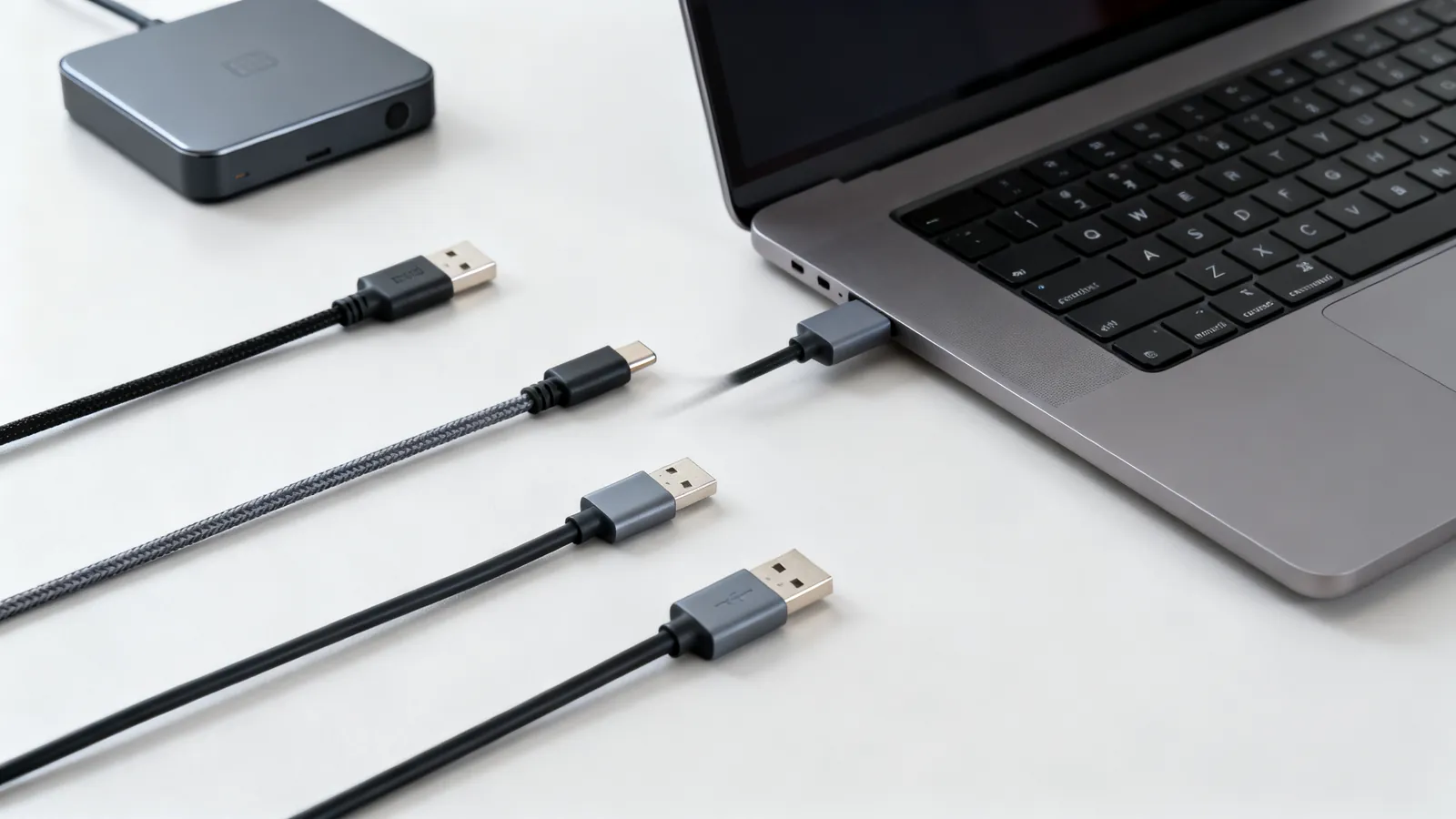
USB 3.2 Gen 2 is a 10 Gbps link. That single fact untangles most of the confusion: the numbers in USB names are the speeds, and the generations are renames of the same technology. USB 3.0 became USB 3.1 Gen 1, then USB 3.2 Gen 1, and all three are 5 Gbps. USB 3.1 Gen 2 became USB 3.2 Gen 2, and both are 10 Gbps. USB4 is a different design that starts at 20 Gbps and reaches 40 Gbps or 80 Gbps. The connector on the end - usually USB-C - says nothing about the speed.
Every USB 3 name in one table
The table below is the whole renaming story. A port or cable sold under an older name is not slower than one sold under a newer name; the name changed, the silicon did not.
| Name on the box | Also called | Speed | Connector notes |
|---|---|---|---|
| USB 3.0 | USB 3.1 Gen 1, USB 3.2 Gen 1, USB 5Gbps | 5 Gbps | Type-A, Type-B, USB-C |
| USB 3.1 Gen 2 | USB 3.2 Gen 2, USB 10Gbps | 10 Gbps | Usually USB-C |
| USB 3.2 Gen 2x2 | USB 20Gbps | 20 Gbps | USB-C only |
| USB4 | USB4 20Gbps | 20 Gbps | USB-C only |
| USB4 | USB4 40Gbps | 40 Gbps | USB-C only |
| USB4 Version 2.0 | USB 80Gbps | 80 Gbps, or 120 Gbps one direction | USB-C only |
USB 3.2 Gen 1 and Gen 2 are the same wires and the same ports as USB 3.0 and USB 3.1 Gen 2. The 2x2 version is the odd one: it uses two 10 Gbps lanes at once, which is why it needs USB-C and cannot run over a Type-A plug. USB4 Version 2.0 can move 120 Gbps in one direction for displays, trading the return path for it.
What the port colours meant
Blue inserts once marked USB 3.0 ports, and teal or red sometimes marked higher speeds or always-on charging. Those colours were never part of the specification, and manufacturers used them loosely. A blue port today may be 5 Gbps, 10 Gbps or a charging-only port. The only reliable label is the speed printed next to the port, or the manual. USB-IF now asks for names such as USB 5Gbps, USB 10Gbps, USB 20Gbps, USB 40Gbps and USB 80Gbps, which say exactly what the port does.
USB 3.0 vs 3.1 vs 3.2: what actually changed
USB 3.0 arrived in 2008 at 5 Gbps. USB 3.1 added a 10 Gbps mode and renamed the old 5 Gbps mode Gen 1. USB 3.2 folded both under one document and added the 20 Gbps two-lane mode, renaming the older modes again. Nothing about a USB 3.0 device changed when the names did.
This matters when buying. A dock advertised as USB 3.2 may be a 5 Gbps dock, because USB 3.2 Gen 1 is a valid description of 5 Gbps. A drive advertised as USB 3.2 Gen 2 is 10 Gbps. Read the generation and the lane count, not the version number.
What a drive or dock really needs
A SATA SSD tops out well below 5 Gbps, so a 5 Gbps port is enough for it. A fast NVMe drive in an enclosure can use 10 Gbps, and a 20 Gbps or 40 Gbps link only helps if the drive itself sustains that. A dock with two 4K displays, Ethernet and card readers needs the display bandwidth more than the data bandwidth, and that is where USB4 and Thunderbolt earn their place. For a plain keyboard, mouse or printer, any USB port is fine.
USB4, Thunderbolt and the 40 Gbps question
USB4 is built on the Thunderbolt 3 protocol, which Intel contributed to the USB-IF in 2019. USB4 runs at 20 Gbps or 40 Gbps. Thunderbolt 3 (2015) is 40 Gbps over USB-C and supplies up to 15 W for bus-powered devices. Thunderbolt 4 (2020) is also 40 Gbps, with PCIe at 32 Gbps, two 4K displays or one 8K, and laptop charging up to 100 W on at least one port. Thunderbolt 5 (2023) runs 80 Gbps both ways, up to 120 Gbps in one direction for displays, PCIe at 64 Gbps, and charging up to 240 W. Thunderbolt 4 and 5 cables also work as USB-C cables for data and charging. The differences in what each one guarantees are set out in Thunderbolt 3, 4 and 5 vs USB4.
Cable length limits by speed
Speed and length trade against each other. The specification gives these limits for USB Type-C cables:
| Link | Maximum cable length |
|---|---|
| USB 2.0 | 4 m (13 ft) |
| USB 5Gbps | 2 m (6.6 ft) |
| USB 10Gbps | 1 m (3.3 ft) |
| Passive USB4 40Gbps | 0.8 m (2.6 ft) |
USB 2.0 cables run up to 5 m (16 ft) per segment, and with up to 5 hubs in a chain, up to 30 m (98 ft) in total. A host controller addresses up to 127 devices. USB 3.x passive cables with Type-A or Type-B plugs are commonly sold up to 3 m (10 ft); active and optical extension cables go further. The full set of limits, including hubs and extensions, is on maximum USB cable length.
Power: what a port and a cable can deliver
A USB 2.0 port supplies 500 mA at 5 V (2.5 W). USB 3.x supplies 900 mA (4.5 W), and USB Battery Charging 1.2 allows up to 1.5 A (7.5 W). USB-C at 5 V can supply 1.5 A (7.5 W) or 3 A (15 W).
USB Power Delivery goes further. Standard Power Range reaches up to 100 W (20 V at 5 A) using fixed voltages of 5 V, 9 V, 15 V and 20 V. PD 3.1 (2021) Extended Power Range reaches up to 240 W (48 V at 5 A), adding 28 V, 36 V and 48 V. Every USB-C to USB-C cable must carry 3 A, which is 60 W at 20 V. Currents above 3 A need a 5 A cable with an e-marker chip: 100 W cables, and 240 W EPR cables. A laptop that charges at 100 W will not charge at full speed from a cable without the e-marker, even if the charger is rated for it.
What goes wrong
A USB-C cable that charges a phone may be a USB 2.0 cable at 480 Mbps. USB-C is a connector, not a speed, and the cable inside may carry only the older data pair. That is why a drive that works at 10 Gbps on one cable crawls on another. The differences are set out in why USB-C cables are not all the same.
A 10 Gbps drive on a 5 Gbps port still works, at 5 Gbps. The link negotiates down, so the fault is performance, not failure. The same happens with a 40 Gbps dock on a 10 Gbps port: displays may drop to one, or resolution may fall.
Long passive cables at high speed are the other common failure. A 3 m USB 10Gbps cable is outside the specification, and the drive may disconnect under load or not appear at all. Active or optical cables exist for those runs.
A charger and a device can agree on power and still not agree on data. Charging-only USB-C cables have no data pairs at all. If a device is not seen by a computer, try the cable that came with a drive rather than the one from a charger.
Finally, a USB4 or Thunderbolt device on a plain USB 3.2 port usually falls back to USB 3.2 behaviour. The port and the cable both have to support the higher mode for it to be used.
Choosing by what is plugged in
For a keyboard, mouse, printer or audio interface, USB 2.0 is enough and any cable works. For a SATA SSD enclosure, 5 Gbps is enough; for NVMe, 10 Gbps or 20 Gbps. For a dock driving two displays, look for USB4 or Thunderbolt 4 or 5, and check the display outputs the dock actually provides. For charging a laptop, match the wattage and use a cable with the e-marker for anything above 60 W.
When a port is unlabelled, the manual or the system’s USB tree will show the speed. The name on the box is the least reliable guide, because the same 5 Gbps link has been sold under three different names.
Common questions
Is USB 3.2 Gen 2 the same as USB 3.1 Gen 2?
Yes. USB 3.1 Gen 2 and USB 3.2 Gen 2 are both 10 Gbps. The name changed when USB 3.2 was published; the link speed did not. USB 3.2 Gen 1 is the older 5 Gbps mode under its third name.
What speed is USB 20Gbps?
USB 20Gbps is USB 3.2 Gen 2x2, which uses two 10 Gbps lanes at once. It requires a USB-C connection at both ends and a cable wired for both lanes. A plain USB 3.2 Gen 2 port is 10 Gbps and cannot reach 20 Gbps.
How can I tell if a USB-C cable is fast or charging-only?
There is no reliable marking on the cable itself. A charging-only cable has no data pairs, so a computer will not see a drive through it. A cable rated for 5 A and 100 W or more carries an e-marker chip, which the device reads to allow higher power.
Does a USB4 device work on a USB 3.2 port?
It usually works at the lower speed of the port. A USB4 drive or dock on a 10 Gbps port runs at 10 Gbps, and display outputs may be reduced. Both the port and the cable must support USB4 for the higher mode to be used.
What is the maximum length for a USB 3.2 Gen 2 cable?
The specification gives 1 m (3.3 ft) for a passive USB 10Gbps cable. Longer passive cables are sold but are outside the specification and may drop the link under load. Active or optical extension cables are the way to go further.
Read next
USB-C Cable Types: Data, Power and Video
Not all USB-C cables are equal. Learn how to tell a charging cable from a data cable, what an e-marker does, and which cable your monitor needs.
Thunderbolt 3, 4 and 5 vs USB4: Speeds and Cables
Thunderbolt 4 vs USB4 explained: bandwidth, PCIe, displays, charging and cable lengths, plus how Thunderbolt 3 and 5 compare and which cable to buy.
USB-C Charging: 60 W, 100 W and 240 W Cables
USB-C cables carry 60 W, 100 W or 240 W depending on the e-marker chip and USB Power Delivery. Learn which cable your phone or laptop needs.